AI for Teachers: Automate Lesson Planning and AI Slide Creation
Automate lesson planning and slide creation with Unni.ai. A practical guide for teachers on saving hours every week using AI presentation tools.
The traditional workflow for educators and corporate trainers often feels like a race against the clock. Between curriculum alignment and designing engaging visuals, the “creative” part of teaching frequently gets buried under administrative weight. However, the rise of educational AI is fundamentally shifting this balance. By using an AI presentation generator, professionals can now transition from manual drafting to high-level curation.
presentation automation isn’t just about speed; it is about reclaiming the mental bandwidth needed to actually teach. Tools like Unni.ai allow you to transform a simple prompt or a dense curriculum document into structured AI slides that are visually cohesive and pedagogically sound. Whether you are a K-12 teacher or an instructional designer, integrating these tools into your lesson planning routine can reduce prep time by up to 80%.
1. Defining the Workflow: Why Use an AI Presentation Generator?
The primary hurdle in lesson planning is the “blank page” syndrome. Educators often spend hours searching for images, formatting bullet points, and ensuring that the visual flow matches the learning objectives.
The Shift to Presentation Automation
With Unni.ai, the process moves from creation to refinement. Instead of building a deck slide-by-slide, you provide the core concepts, and the AI presentation generator builds the structure for you.
-
Time Savings: Generate a 15-slide deck in under two minutes.
-
Consistency: Maintain professional design standards without needing graphic design skills.
-
Adaptability: Easily pivot content for different grade levels or corporate departments using Unni.
2. Step-by-Step Guide to Creating AI Slides for the Classroom
Implementing educational AI into your daily routine is straightforward. Follow these steps to maximize the utility of Unni.ai.
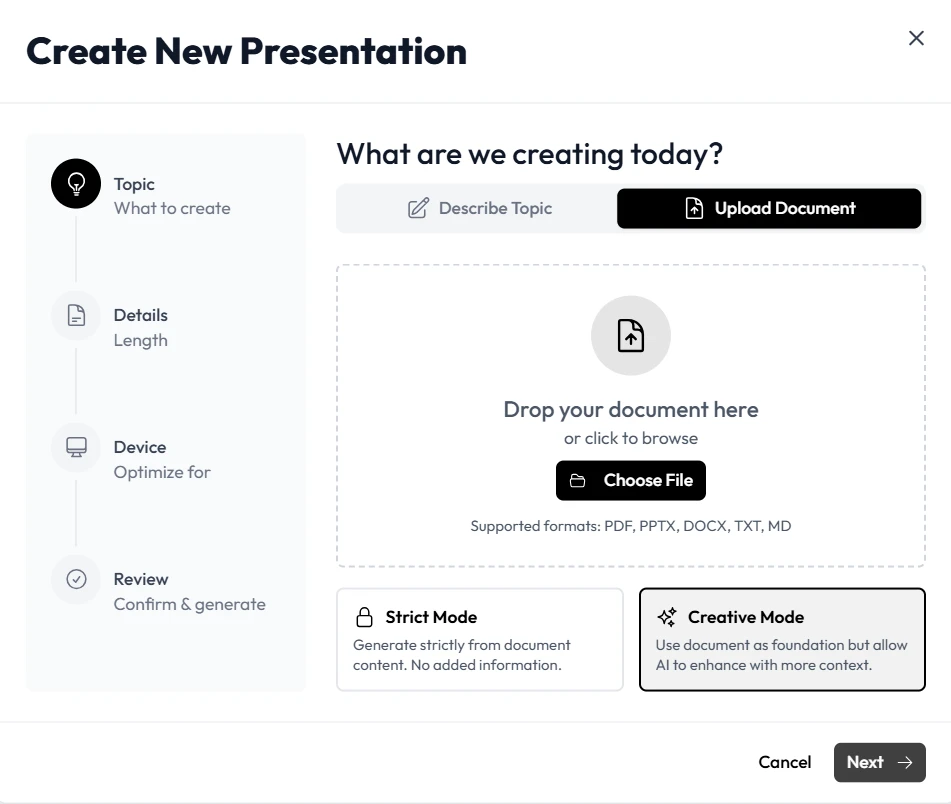
Step 1: Input Your Core Content
Start by feeding your raw data into Unni. This could be a chapter from a textbook, a rough outline, or a specific learning standard. Unni excels at parsing complex information into digestible chunks.
Step 2: Select Your Educational Template
Unni offers specific layouts designed for retention. For lesson planning, choose templates that prioritize clarity and space for interactive elements like polls or discussion questions.
Step 3: Refine with AI Slides Editing
Once the initial draft is generated, use the Unni interface to tweak the tone. You can instruct it to “make this more conversational for middle schoolers” or “add a summary slide for a corporate audience.”
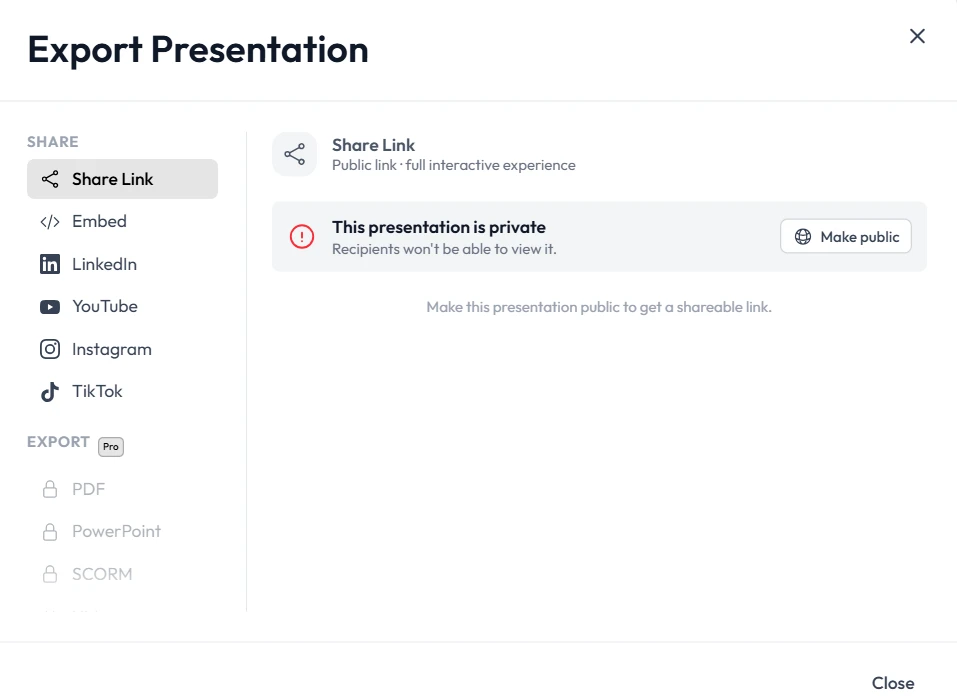
Step 4: Export and Present
Finalize your deck and export it to your preferred format. Unni ensures that the AI slides are compatible with standard classroom hardware and software.
3. Practical Examples of AI in Education
How does this look in practice? Here are three common scenarios where presentation automation through Unni.ai solves real-world problems:
-
Science Lab Safety: A teacher uploads a safety PDF to Unni.ai. The platform generates a visual guide with safety icons and a concluding quiz slide.
-
Corporate Compliance: A trainer inputs new legal regulations. Unni.ai creates a professional deck that highlights key takeaways and compliance deadlines. Learn how L&D teams use this workflow at scale.
-
Historical Timelines: An instructional designer uses Unni to turn a long-form article about the Renaissance into a chronological slide deck with era-appropriate AI-generated visuals.
4. Checklist: Getting the Most Out of Unni.ai
To ensure your AI slides are effective, keep this checklist in mind during your next session on Unni:
-
Objective Check: Does the first slide clearly state the learning goal?
-
Visual Balance: Are there enough images to support the text without cluttering the screen?
-
Engagement: Did Unni.ai include a slide for questions or student reflection?
-
Accuracy: Have you double-checked the educational AI output for factual precision?
-
Branding: Are the school or corporate colors consistent throughout the Unni deck?
5. Frequently Asked Questions (FAQ)
Can I edit the slides after Unni.ai generates them?
Yes. Unni.ai provides a full-featured editor where you can move elements, change fonts, and update text just like a traditional editor, but with the added benefit of presentation automation shortcuts.
Is the content generated by educational AI accurate?
While Unni is highly advanced, it is best practice to review all AI slides for subject-specific nuances. Think of Unni.ai as a high-speed draft assistant.
Does Unni.ai support different languages?
Unni supports multiple languages, making it a versatile tool for ESL teachers and global corporate trainers.
Conclusion: The Future of Lesson Planning
The era of spending entire weekends on lesson planning is coming to an end. By leveraging an AI presentation generator like Unni.ai, you can focus on what matters most: the students and the content. Presentation automation is not just a trend; it is a necessary evolution for modern educators who need to stay efficient in a fast-paced environment. Embrace educational AI and start creating your next set of AI slides with Unni today to see how much time you can save.