How to create a Power Point Presentation with AI
Learn how to create a PowerPoint presentation with AI using Unni.ai. Step-by-step guide to going from a blank page to a polished deck in minutes.
Creating professional presentations no longer requires hours of manual design or deep technical skill. With Unni.ai, an advanced AI presentation generator, you can transform a simple prompt or a rough outline into a complete, polished deck in seconds. This guide explores how to leverage AI slides to streamline your workflow through high-level presentation automation.
Whether you are a teacher looking for educational AI solutions or a corporate trainer, Unni.ai provides the essential tools needed to succeed. Learn how to master this technology to save time and improve engagement in every session.
Why Choose an AI Presentation Generator for Your Next Project?
The traditional way of building a PowerPoint deck involves a tedious cycle of selecting templates, aligning text boxes, and searching for relevant imagery. For educators and professionals, this time is often better spent on content development and delivery. Using Unni.ai shifts the focus from design mechanics to storytelling.
Unni.ai acts as a creative partner that understands the structure of information. By utilizing presentation automation, the platform ensures that every slide follows logical hierarchies and visual best practices. This is particularly beneficial for educational AI applications where clarity and cognitive load management are vital for student success.
Young professionals and corporate trainers also benefit from the consistency that Unni.ai provides. Instead of starting from a blank screen, you begin with a structured draft that only needs your specific expertise to be final. The efficiency gained through Unni.ai allows for more frequent and higher-quality communication across teams and classrooms.
Step-by-Step Guide: Creating AI Slides with Unni.ai
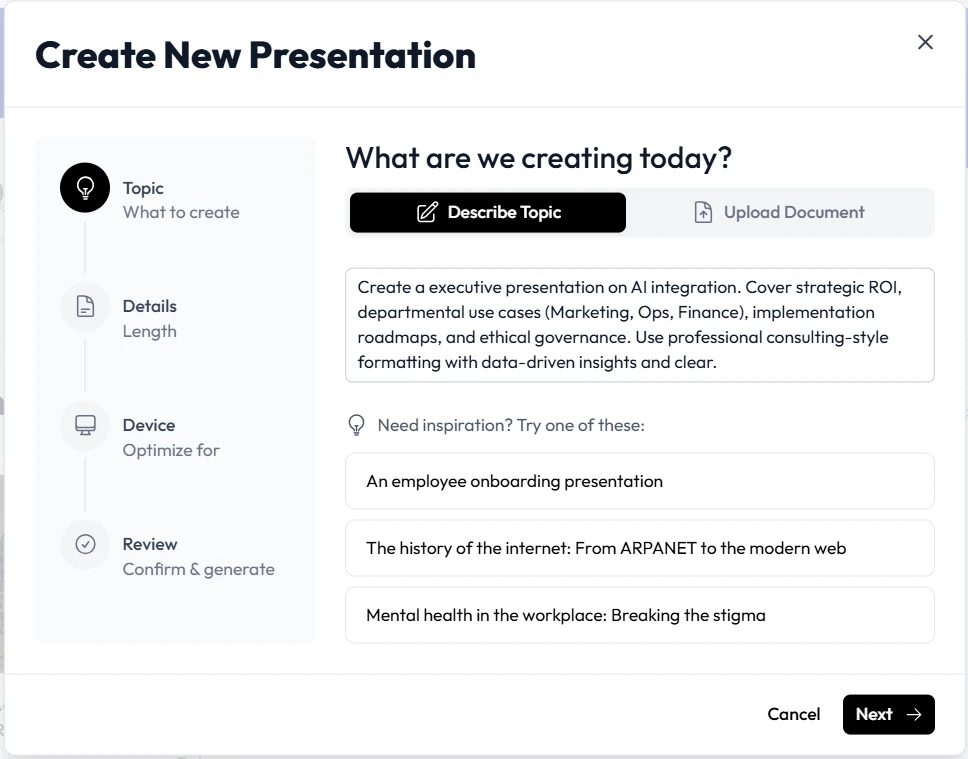
Getting started with Unni is straightforward. The goal is to provide enough context so the AI can generate accurate and visually appealing content. Follow these steps to create your first presentation.
1. Define Your Topic and Audience
Open Unni.ai and start by entering a clear prompt. Rather than a vague title like “History,” try “A 10-slide presentation for high school students on the causes of the Industrial Revolution.” The more specific you are in, the better the initial draft will be.
2. Choose Your Design Style
Unni.ai offers various aesthetic options tailored to different professional needs. Select a theme that matches your brand or classroom environment. The AI presentation generator will then apply these styles across all slides to ensure visual harmony.
3. Review and Refine the AI-Generated Outline
Before the final slides are rendered, Unni.ai provides a structured outline. This is your chance to add or remove sections. If you are using Unni.ai for lesson planning and AI slide creation, ensure the learning objectives are clearly highlighted in this step.
4. Customizing Content with Unni.ai
Once the slides are generated, you can edit text, swap images, or change layouts within Unni.ai. The interface is designed for speed. You can ask Unni.ai to rewrite specific paragraphs or find more professional images with a single click.
5. Exporting to PowerPoint
After you are satisfied with the result in Unni.ai, use the export feature to download your file in .pptx format. This allows you to open your AI slides in Microsoft PowerPoint for final offline tweaks or to present directly from your favorite software.
Leveraging Educational AI for Lesson Planning and Training Automation
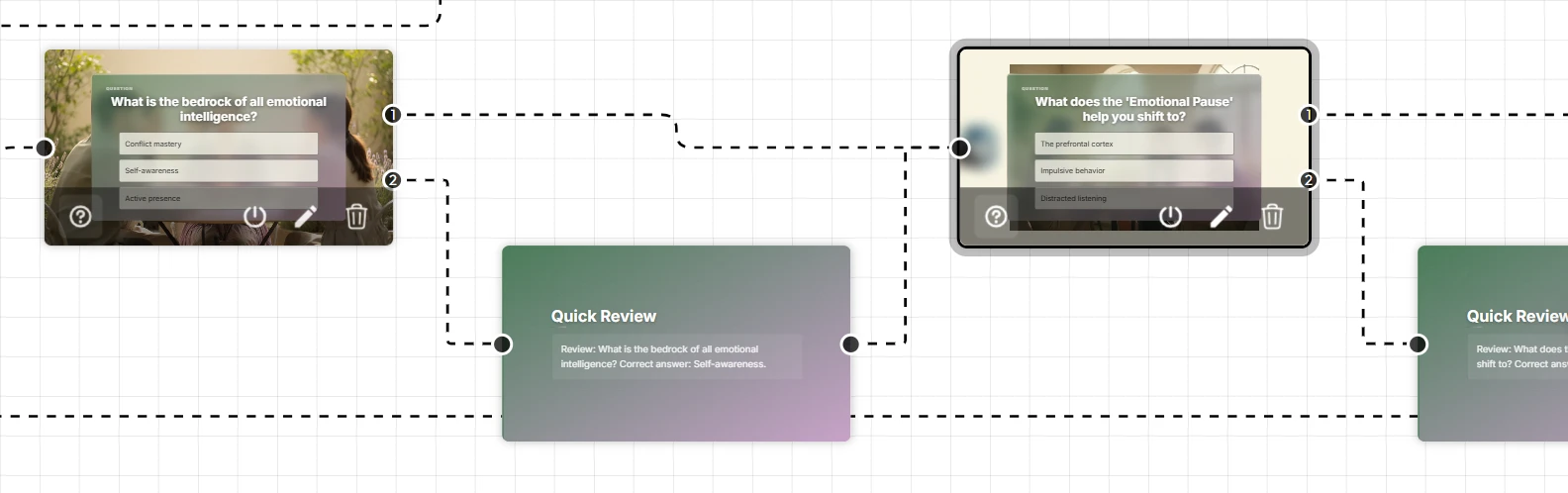
For teachers and instructional designers, the integration of educational AI into daily tasks is a major competitive advantage. Unni.ai is not just a design tool; it is a pedagogical assistant. When you use Unni.ai for lesson planning, the tool can suggest interactive elements or quiz questions based on the content of your slides.
Training automation is another area where Unni.ai excels. Corporate trainers often need to produce vast amounts of material for onboarding or compliance. Unni.ai allows you to upload a training manual and automatically convert the text into a comprehensive slide deck. This significantly reduces the time spent on manual formatting.
By using Unni.ai, you ensure that your materials are accessible and visually engaging. The presentation automation features handle font scaling and color contrast, which are often overlooked in manual design but are critical for effective learning environments.
Practical Examples for Different Professionals
Understanding how to apply Unni.ai in real-world scenarios helps in maximizing its potential. Here are a few ways different roles use the platform.
-
Academic Professionals: Use Unni.ai to summarize complex research papers into digestible conference presentations.
-
Course Creators: Quickly build modules for online courses by feeding Unni.ai your video scripts or lecture notes.
-
Corporate Trainers: Scale their training automation by generating unique presentations for different departments based on a single core document.
-
Young Professionals: Impress stakeholders with data-driven AI slides that look like they were designed by a professional agency.
Checklist for a Perfect AI-Generated Presentation
Before you head into your next meeting or classroom session, run through this checklist to ensure your Unni.ai project is flawless.
-
Verify Accuracy: Always fact-check the dates, names, and statistics generated by Unni.ai.
-
Consistent Branding: Ensure the colors and logos in Unni.ai match your organization’s identity.
-
Check Flow: Read through the deck to ensure the transition between slides is logical.
-
Optimize Visuals: Replace any generic images with specific charts or photos relevant to your unique topic.
-
Test Exports: Open your exported file in PowerPoint to check for any font or alignment shifts.
Frequently Asked Questions (FAQ)
Can I export Unni.ai slides to Google Slides?
Yes, once you download your presentation from Unni.ai as a PowerPoint file, you can easily upload and convert it to Google Slides.
Is Unni.ai suitable for complex scientific presentations?
Unni.ai is highly capable of handling technical content. For best results, provide a detailed outline or a text document for the AI presentation generator to reference.
How does Unni.ai help with lesson planning?
Unni.ai uses educational AI to structure content according to instructional design principles, making it easier to create effective teaching materials quickly.
Can I collaborate with others on Unni.ai?
Unni.ai includes collaborative features that allow multiple users to edit and comment on a project in real-time.
Conclusion: The Future of Presentations is Here
The era of spending late nights struggling with slide design is over. By adopting Unni.ai, you embrace the power of presentation automation to deliver better results in less time. Whether your goal is to enhance educational AI in the classroom or to scale training automation in a corporate setting, Unni.ai provides a reliable and intuitive solution.
Start using an AI presentation generator today to see the difference in your productivity. With Unni.ai, your AI slides will look professional, engage your audience, and let your ideas shine without the design headache.