How Teachers Can Use Pinterest and AI Together for Lesson Planning
Learn how teachers can combine Pinterest and AI to enhance lesson planning. Turn visual inspiration into structured educational slides with Unni.ai.
Visual inspiration is often the starting point for the most engaging lessons. Teachers have long used Pinterest to curate aesthetic ideas, infographics, and creative project boards. However, the gap between finding a beautiful image and turning it into a structured, classroom-ready presentation can be time-consuming. By integrating the visual discovery of Pinterest with the power of Unni.ai, educators can bridge this gap through presentation automation.
This guide explores how to leverage Unni.ai as your primary AI presentation generator to transform static pins into dynamic, interactive educational AI Slides content that resonates with modern students.
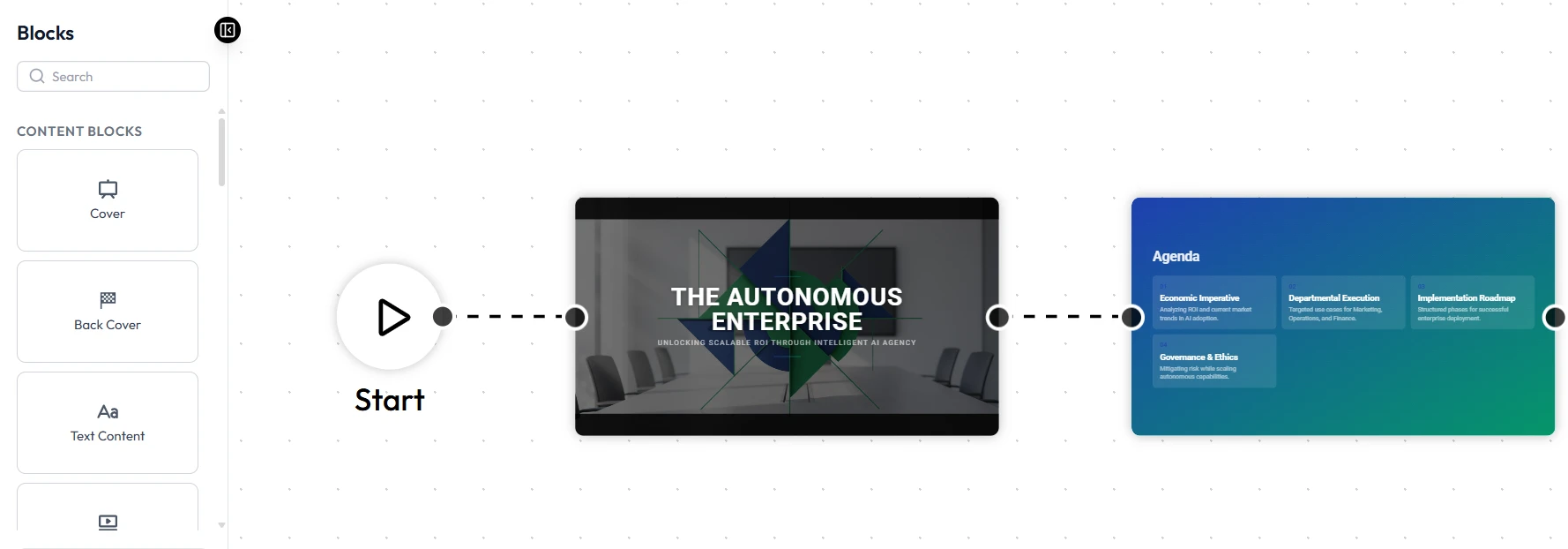
The Power of Visual Discovery in Education
Pinterest functions as a massive search engine for educators. Whether you are looking for complex diagrams of cellular biology or minimalist layouts for a history lecture, the platform provides a wealth of visual data. But a collection of saved images is not a lesson plan. This is where Unni.ai becomes essential.
By using Unni, you can take the core concepts found on your Pinterest boards and convert them into structured AI slides. This workflow allows you to maintain the creative spark found online while using Unni.ai to handle the heavy lifting of formatting, content structuring, and design.
Step 1: Curating High-Quality Inputs on Pinterest
Before opening Unni.ai, you need a clear vision. Start by creating a dedicated board for your specific lesson topic. Instead of just pinning pretty pictures, look for pins that contain “meat”: infographics, data points, or structured outlines.
-
Search for specific keywords related to your curriculum.
-
Save at least five to ten pins that represent the narrative arc of your lesson.
-
Note the key headings or “big ideas” presented in these visuals.
The quality of your AI slides depends heavily on the clarity of your initial concept. Unni excels when you provide it with a strong thematic foundation.
Step 2: Transforming Pins into Prompts for Unni.ai
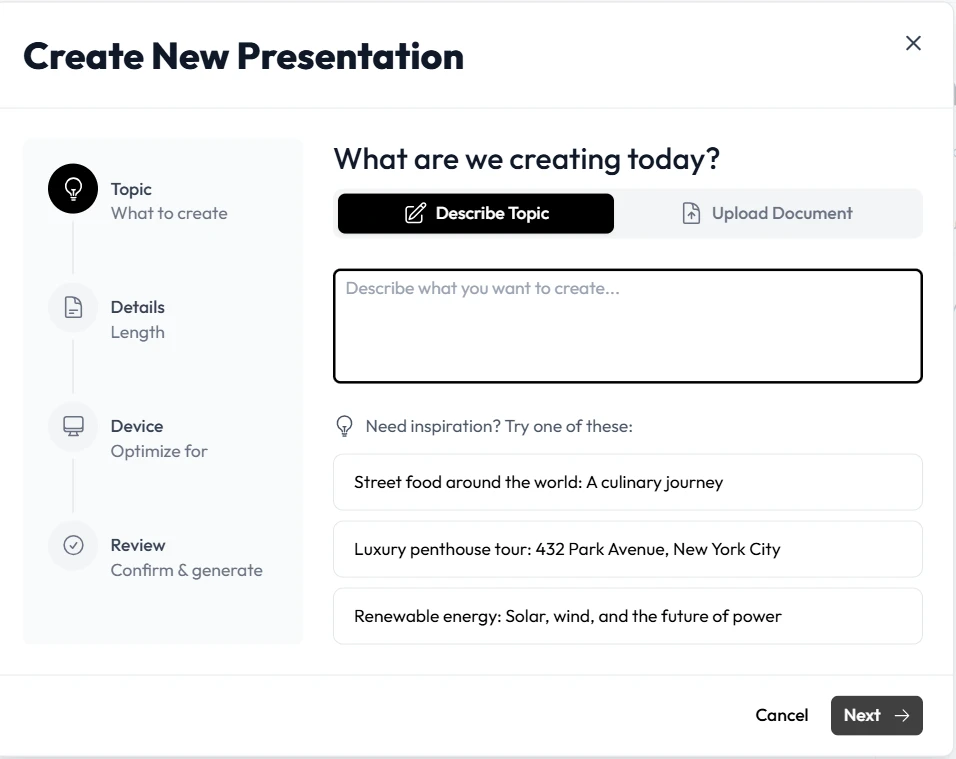
Once your board is ready, you don’t need to manually copy and paste every word. Instead, summarize the core themes of your Pinterest board into a descriptive prompt. Unni.ai uses advanced natural language processing to understand pedagogical requirements.
Open Unni and navigate to the creation interface. If your Pinterest board is about the “Impact of the Industrial Revolution on Modern Urbanization,” your prompt in Unni.ai should reflect the specific visuals you found. You might tell Unni.ai to “Create a 10-slide presentation for 10th-grade students focusing on the transition from rural to urban living, using a clean, industrial aesthetic.”
Unni.ai will then use its AI presentation generator capabilities to draft a full outline. You can refine this outline within Unni to ensure it hits every learning objective found in your Pinterest research.
Step 3: Designing AI Slides with Unni.ai
One of the biggest hurdles in lesson planning is the design phase. Teachers often spend hours adjusting font sizes and alignment. Unni.ai removes this friction through presentation automation.
When you select a theme in Unni.ai, the platform ensures that every slide is cohesive. If your Pinterest inspiration featured a specific color palette (for example, earthy tones for a geography lesson), you can select a matching style in Unni. The educational AI built into Unni.ai understands how to balance text and imagery, ensuring that your AI slides are not overcrowded, a common mistake in classroom presentations.
Step 4: Adding Interactive Elements
Modern teaching requires more than just a lecture. After Unni generates your initial deck, you can use the platform’s tools to add interactive components. This is the stage where you turn a “slideshow” into a “learning experience.”
-
Review the content Unni.ai generated for accuracy.
-
Insert reflection questions at the end of each section.
-
Use Unni.ai to suggest a quiz for further exploration.
The beauty of using Unni.ai is that it doesn’t just give you a static file; it provides a flexible canvas that you can update as your lesson evolves.
Practical Examples: Pinterest and Unni.ai in Action
To better understand how this works in a real-world scenario, consider these three use cases for different educational levels:
The Science Teacher: A biology teacher finds a series of Pinterest pins about the water cycle. They use Unni.ai to generate a presentation that includes a step-by-step breakdown of evaporation, condensation, and precipitation. Unni.ai automatically formats the complex cycle into digestible AI slides that students can easily follow.
The History Educator: A teacher curates a Pinterest board of primary source photographs from the Civil Rights Movement. They input these descriptions into the Unni.ai AI presentation generator. Unni.ai builds a timeline-based presentation, allowing the teacher to spend more time on storytelling and less time on slide formatting.
The Corporate Trainer: An instructional designer uses Pinterest to find modern UI/UX trends for a “Digital Literacy” workshop. They use Unni.ai to perform presentation automation, creating a sleek, professional deck that looks like it was designed by a high-end agency, all within Unni.ai.
Checklist for High-Impact Lesson Planning
Use this checklist to ensure your workflow with Pinterest and Unni.ai is optimized for efficiency:
- Define the Objective: What should students know by the end of these AI slides?
- Curate 5-10 Visuals: Save pins that represent key data or visual metaphors.
- Prompt Unni.ai Clearly: Include the grade level and specific topics in your Unni.ai prompt.
- Review for Flow: Use the Unni.ai outline view to ensure a logical progression of ideas.
- Check Accessibility: Ensure the fonts and colors chosen in Unni.ai are readable for all students.
- Export and Share: Use the seamless export options in Unni.ai to present in person or share digitally.
Frequently Asked Questions (FAQ)
Can Unni.ai read my Pinterest boards directly?
Currently, you should summarize your Pinterest findings into a text-based prompt for Unni.ai. This ensures that the AI presentation generator understands the specific context and academic tone you want to achieve. You can also insert images from your boards in the AI slides.
Is Unni.ai suitable for K-12 and Higher Education?
Yes, Unni.ai is highly versatile. By adjusting your prompt instructions within Unni.ai, you can dictate the complexity of the language and the depth of the content, making it perfect for any educational level.
How does presentation automation save time?
Traditional slide creation takes an average of 4 to 8 hours per deck. With Unni.ai, the initial draft of your AI slides is ready in seconds. This allows you to focus on pedagogical strategy rather than manual design.
Can I use my own images in Unni.ai?
Absolutely. While Unni.ai provides excellent automated visuals, you can easily upload the specific images or infographics you found on Pinterest directly into your Unni.ai project.
Conclusion: Elevating Your Teaching with Unni.ai
The combination of Pinterest’s visual variety and Unni.ai’s technological power represents a new frontier for educators. By utilizing an AI presentation generator, you are not just making your life easier; you are creating higher-quality, more engaging materials for your students.
Presentation automation is a core tool for the modern teacher. Unni.ai provides the bridge between a simple idea and a professional, educational AI presentation. Whether you are building a quick lesson or a comprehensive course, let Unni.ai handle the structure so you can focus on the teaching. To take your Pinterest strategy further and reach a wider audience with viral carousels, read using AI slideshows to create viral Pinterest educational content.