How to Add a Quiz to Your Course in Less Than 5 Minutes with AI
Learn how to add interactive quizzes to your course in under 5 minutes using Unni.ai. Step-by-step guide for educators and course creators.
Creating engaging educational content often feels like a race against the clock. For teachers and corporate trainers, the challenge isn’t just delivering information but ensuring that the audience actually retains it. Manual quiz creation is notoriously slow, often requiring hours of drafting questions and formatting slides. However, with the rise of educational AI, this workflow has been transformed.
By using Unni.ai, a powerful AI presentation generator, you can move from a static deck to an interactive learning experience in seconds. Whether you are looking for presentation automation to speed up your content creation or need a reliable AI for teachers to handle assessment logic, Unni.ai provides the tools to get it done.
This guide will show you exactly how to integrate high-quality quizzes into your professional or academic presentations using Unni.ai in less than five minutes.
Why Use an AI Presentation Generator for Quizzes?
Interactive elements are the backbone of effective instruction. Traditional quiz authoring often means installing heavy, Windows-only software, which is why Mac-based educators frequently hunt for a Storyline alternative for Mac that runs in the browser. When you utilize presentation automation, you aren’t just saving time; you are improving the pedagogical value of your slides. Unni.ai leverages advanced educational AI to analyze your existing slide content and generate contextually relevant questions. This ensures that your assessments are always aligned with your learning objectives without the manual grind of lesson planning.
Step 1: Upload or Generate Your Core Content in Unni.ai
Before adding a quiz, you need your primary material. If you already have a deck, you can import it directly into Unni.ai. If you are starting from scratch, use the prompt-to-presentation feature. Simply describe your topic, and the AI presentation generator will build the foundational slides for you.
Step 2: Access the Interactive Elements Panel
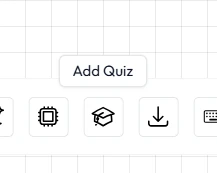
Once your slides are ready, navigate to the “Interactions” tab within the Unni.ai interface. Unni.ai is designed to be intuitive for instructional designers and academic professionals alike. Look for the “Add Quiz” button.
Step 3: Let the AI Generate Questions
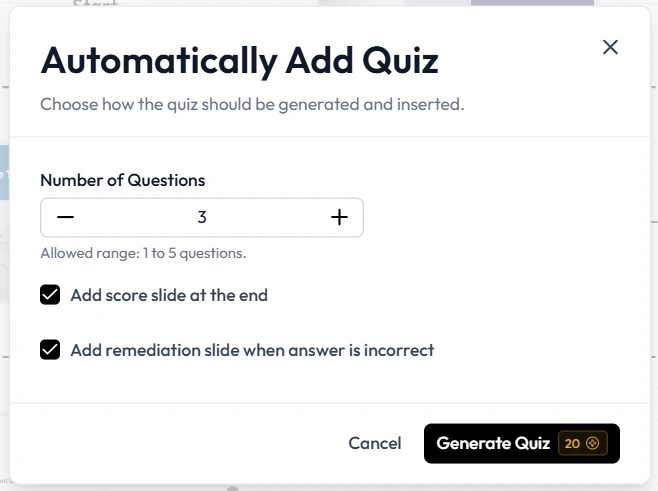
This is where the magic of educational AI happens. Instead of typing out each question, click the “Auto-Generate” toggle. Unni.ai will scan the text on your current slides to produce:
-
Multiple-choice questions.
-
True or False statements.
-
Short-answer knowledge checks.
Step 4: Review and Customize
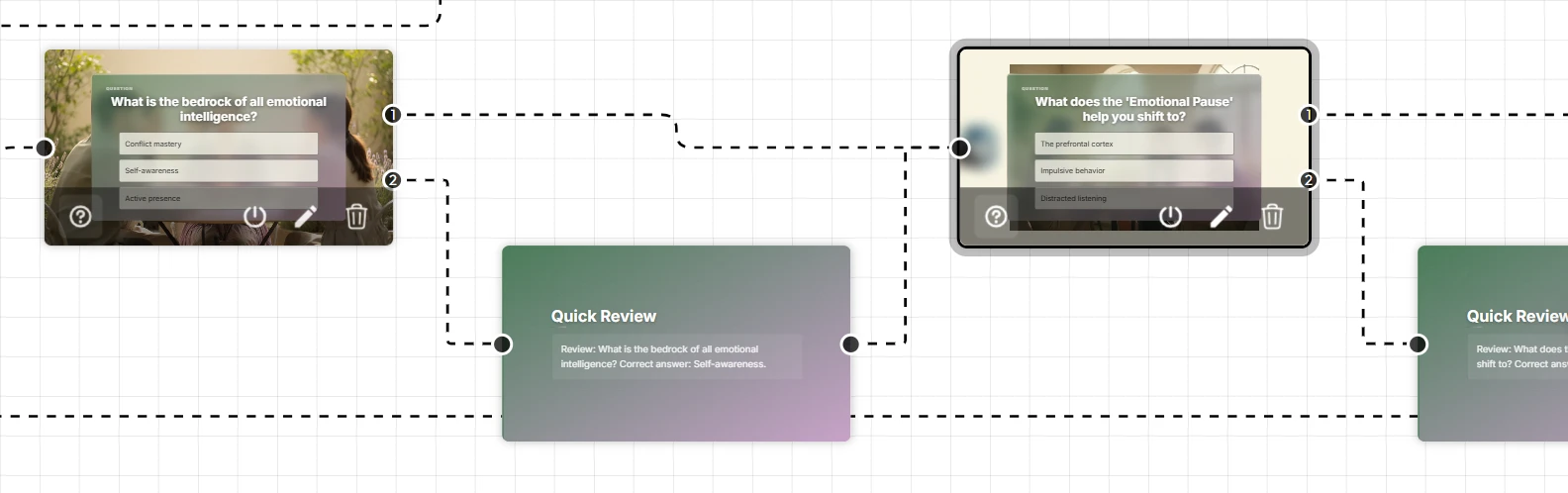
While Unni.ai is highly accurate, a quick human review ensures the tone matches your specific audience. You can easily drag and drop questions to reorder them or edit the distractors (the incorrect answers) to make them more challenging for advanced learners.
Step 5: Finalize and Share
Once satisfied, hit “Save.” Your quiz is now a seamless part of your presentation. You can share the Unni.ai link with your students or export the deck for use in your Learning Management System (LMS).
Practical Examples for Different Sectors
Unni.ai is versatile enough to handle various professional needs. Here is how different users are currently applying presentation automation:
-
Corporate Trainers: Use Unni.ai to add a compliance check at the end of a safety training module. The AI ensures the questions cover the legal requirements mentioned in the text.
-
K-12 Teachers: Utilize AI for teachers to create “Exit Tickets” at the end of a history lesson, allowing for immediate data on student comprehension.
-
Course Creators: Build engagement by inserting “knowledge milestones” throughout a 20-slide course, keeping the learner active rather than passive.
Your Quick Setup Checklist
Before you hit “Present,” run through this checklist to ensure your Unni.ai quiz is optimized:
-
Content Alignment: Do the questions reflect the most important points on your slides?
-
Difficulty Level: Are the questions appropriate for your target audience (e.g., young professionals vs. academic students)?
-
Feedback Loops: Have you enabled the “Show Correct Answer” feature in Unni.ai to provide instant feedback?
-
Visual Consistency: Does the quiz slide match the branding and aesthetic of the rest of your Unni.ai presentation?
Frequently Asked Questions
Can Unni.ai generate quizzes from uploaded PDFs?
Yes. When you upload a PDF to Unni.ai, the AI presentation generator parses the document and can create both the slides and the accompanying quizzes based on that specific source material.
Is the quiz feature mobile-friendly?
Absolutely. Presentations and quizzes created in Unni.ai are responsive, meaning your students or trainees can take the quiz on their phones, tablets, or laptops with no formatting issues.
Can I track the results of the quiz?
Unni.ai offers analytics for professional and educator accounts. You can see how many participants took the quiz and the average score, making it a great tool for training automation.
Conclusion: Mastering Lesson Planning with AI
The transition to educational AI is no longer a future concept; it is a current necessity for anyone looking to stay competitive in the world of instruction and design. By leveraging presentation automation through Unni.ai, you can eliminate the most tedious parts of your workflow.
Adding a quiz no longer requires a significant time investment. With the Unni.ai AI presentation generator, you can provide your audience with high-quality, interactive assessments that drive retention and engagement in under five minutes.
Stop spending hours on manual lesson planning and start creating. Explore how Unni.ai can revolutionize your next presentation today.