How to Convert Notion Documents into AI Slides
Convert your Notion documents into professional AI slides with Unni.ai. A practical guide for educators and teams looking to automate their presentation workflow.
Notion is the ultimate workspace for organizing thoughts, but it is not built for presenting them. When you need to turn a detailed project plan or a lesson outline into a visual deck, the manual copy and paste process is a productivity killer. By using Unni.ai, an advanced AI presentation generator, you can instantly transform your text-heavy Notion pages into stunning AI slides. This guide will show you how to leverage presentation automation and educational AI to bridge the gap between your notes and your next big presentation.
Why You Should Use an AI Presentation Generator for Your Notion Docs
Many professionals and educators live in Notion. It is where lesson planning happens and where complex projects are mapped out. However, presenting directly from a Notion page often lacks the visual impact needed to hold an audience’s attention. This is where Unni comes in.
Using Unni.ai allows you to maintain the depth of your research while gaining the visual polish of a professional designer. Instead of spending hours resizing text boxes, Unni.ai uses presentation automation to handle the layout for you. For those in the classroom, this type of educational AI ensures that your focus stays on teaching, not on troubleshooting slide formats.
The Problem with Manual Formatting
When you manually move content from Notion to a slide deck, you lose the structural hierarchy. Headings, bullet points, and toggles often require complete rebuilding. Unni.ai recognizes these structures and maps them directly to a logical slide flow. This saves significant time for anyone involved in training automation or academic lecturing.
Step 1: Prepare Your Notion Content for Unni.ai
Before you trigger the AI presentation generator, a little preparation goes a long way. Unni.ai is highly intelligent, but it performs best when your Notion page is well-organized.
-
Use Clear Headings: Ensure your Notion page uses H1 for main sections and H2 for sub-points. Unni uses these as slide titles and key transition points.
-
Simplify Your Bullets: Keep your bullet points concise. If a point is too long, Unni.ai might suggest splitting it across multiple AI slides.
-
Highlight Key Data: If you have specific statistics or quotes, put them in a Callout block or bold them. Unni.ai often prioritizes these for visual emphasis.
By organizing your thoughts first, you make the presentation automation process much smoother. This is a crucial step for AI for teachers who need their lectures to follow a specific pedagogical flow.
Step 2: Import Your Content into Unni.ai
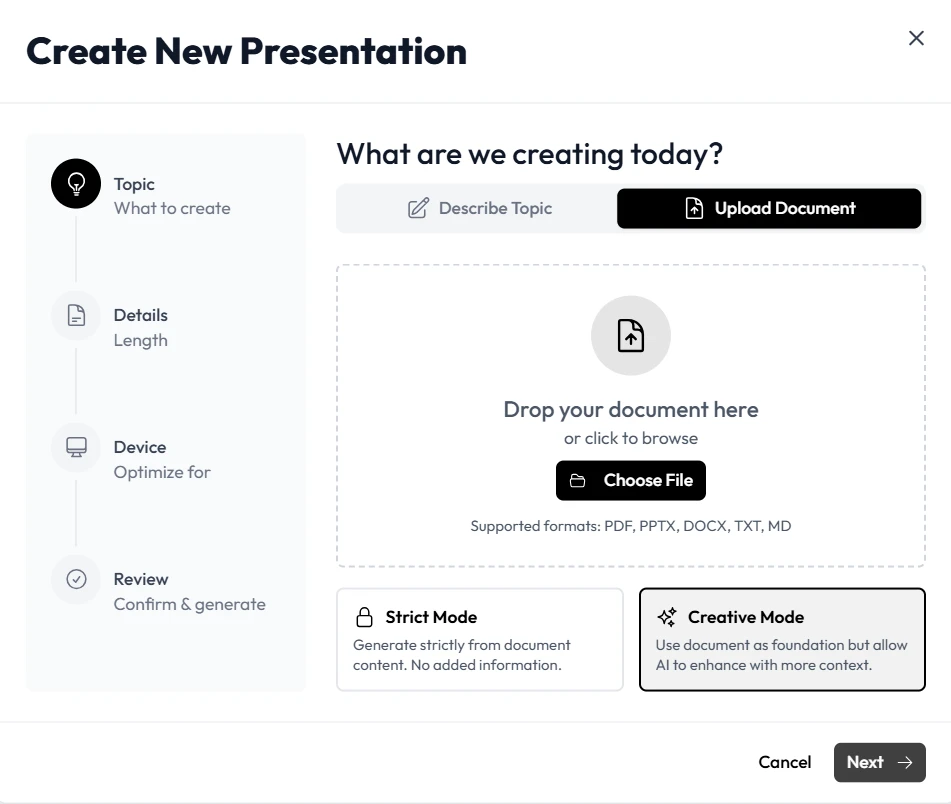
Once your Notion document is ready, the next step is moving it into Unni. There are two primary ways to do this within the Unni.ai interface.
The Direct Text Import
You can simply copy the content of your Notion page and paste it into the Unni.ai prompt box. Unni will analyze the text, identify the core themes, and begin generating the deck. This is often the fastest method for quick updates or shorter lesson planning tasks.
Using the Notion File
For more complex documents, you can often provide the file of your Notion page to Unni.ai. Unni will crawl the page, maintaining the hierarchy of your toggles and databases. This is a game changer for training automation, where you might have dozens of pages of documentation that need to be distilled into a single training module.
Step 3: Let Unni.ai Generate Your AI Slides
After you provide the content, Unni.ai takes over. The AI presentation generator goes beyond just placing text on a background. It selects appropriate imagery, chooses color palettes that match your theme, and structures the narrative arc of the presentation.
Customizing the Output
Unni.ai allows you to intervene at any point during the generation. You can:
-
Change the Tone: Ask Unni to make the presentation more professional, academic, or creative.
-
Select Visual Themes: Choose from a library of design styles that fit your brand or classroom environment.
-
Add Interactive Elements: If you are using Unni for educational AI, you can prompt it to add discussion slides or summary checkpoints.
This level of control ensures that while the process is automated, the final product still reflects your unique voice and style.
Step 4: Refine and Polish Your Presentation
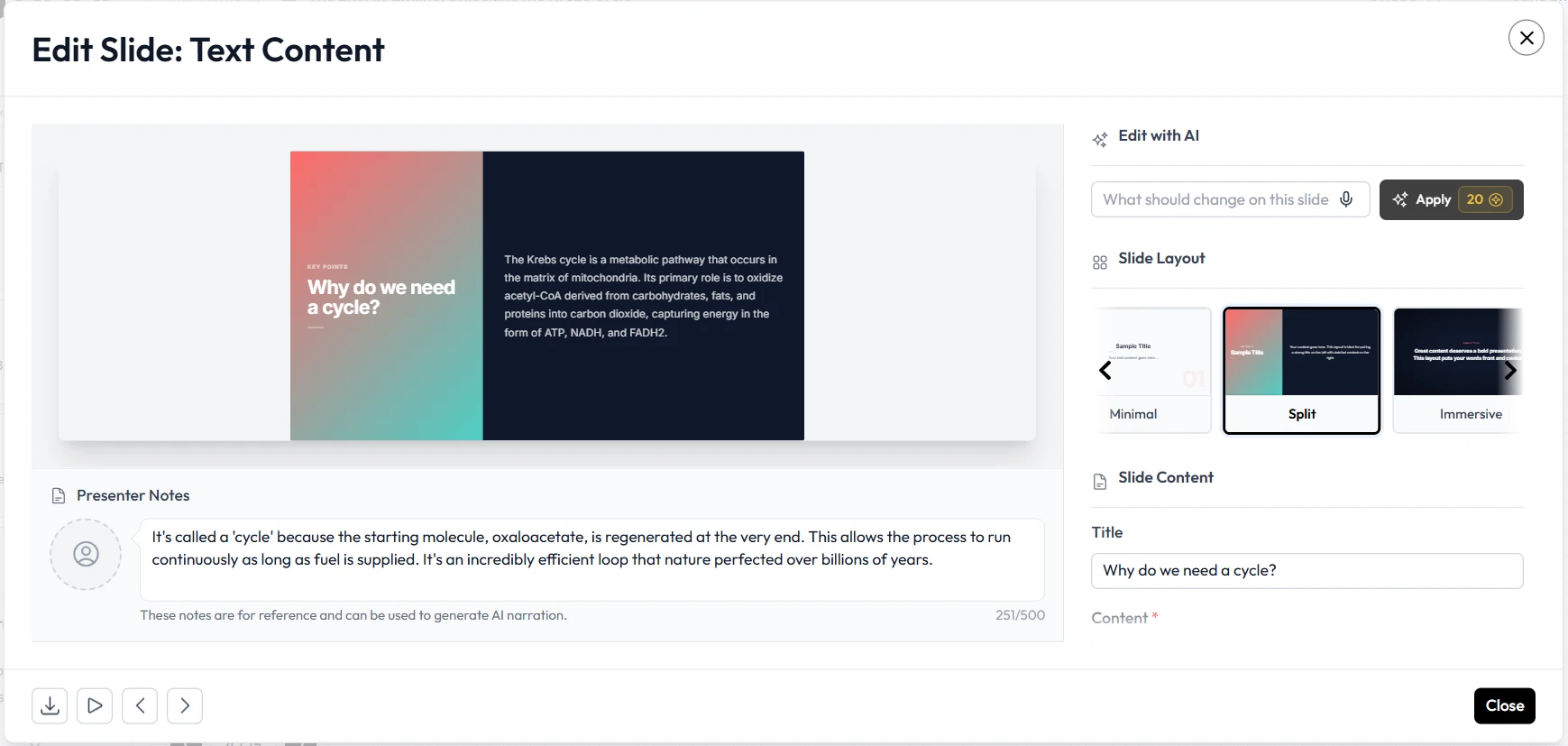
Even with the best presentation automation, a human touch adds that final 5 percent of quality. Unni.ai makes editing incredibly easy. If a specific slide doesn’t look exactly how you want it, you can use the Unni.ai editor to swap layouts or change the background image in one click.
For those focused on training automation, this is where you can add company-specific logos or links to internal resources. Unni keeps the formatting consistent across the entire deck, so you don’t have to worry about broken alignments or mismatched fonts.
Practical Examples of Notion to Unni.ai Workflows
Understanding how others use Unni.ai can help you optimize your own process. Here are a few ways different professionals leverage the AI presentation generator.
Corporate Training Automation
A human resources manager has a 50-page Notion handbook on company culture. Instead of presenting the document, they paste the file into Unni.ai. Within minutes, Unni generates a 15-slide onboarding deck that covers the mission, values, and benefits. The manager saves hours of work, and the new hires receive a visually engaging introduction to the company.
AI for Teachers and Lesson Planning
A high school science teacher keeps all their research on the solar system in Notion. Using Unni.ai, they turn those notes into an interactive lecture. The educational AI in Unni suggests relevant NASA imagery and builds a quiz slide at the end to check for student understanding.
Academic Research Presentations
A PhD candidate uses Notion to store their thesis data. When it is time to present at a conference, they use Unni to create a sophisticated deck that handles complex data points gracefully. Unni.ai ensures the slides look academic and rigorous, matching the tone of the research.
Checklist: From Notion Doc to Polished Slide Deck
Use this checklist to ensure your Unni.ai workflow is optimized for success:
-
Does the Notion page have a clear H1 and H2 hierarchy?
-
Are the bullet points concise and easy to read?
-
Have you selected the correct tone in the Unni.ai settings?
-
Did the AI presentation generator include all your must-have data points?
-
Are the images provided by Unni.ai relevant to your specific audience?
-
Have you included a Call to Action or a summary slide at the end of the Unni deck?
-
Is the design consistent with your personal or corporate brand?
FAQ: Converting Notion to Slides with Unni.ai
Does Unni.ai support Notion databases?
Yes, Unni.ai can interpret the data within Notion tables and databases, often converting them into readable charts or organized list slides. This is particularly useful for training automation where data tracking is essential.
Can I export my Unni.ai slides back to other formats?
Absolutely. Once Unni.ai has generated your deck, you can export it to PDF, PowerPoint, or share it via a live link. This flexibility ensures that your AI slides work wherever you need to present.
How much time does Unni.ai save on average?
Most users find that Unni.ai reduces the time spent on slide design by over 70 percent. By automating the visual layout, Unni allows you to focus purely on your content.
Is Unni.ai suitable for complex academic topics?
Yes, the educational AI behind Unni.ai is designed to handle sophisticated topics. Whether you are lesson planning for a university or a primary school, Unni adapts to the complexity of your input text.
Conclusion: The Future of Presenting is Automated
The days of struggling with slide design are over. By combining the organizational power of Notion with the creative intelligence of Unni.ai, you can produce high-quality AI slides in a fraction of the time. Whether you are a teacher looking for better lesson planning tools or a professional needing to scale your training automation, Unni.ai provides the perfect solution.
An AI presentation generator is a necessity for anyone who wants to communicate ideas effectively in a fast-paced world. Embrace presentation automation and let educational AI take your content to the next level. Your audience will thank you for the clarity, and you will appreciate the hours of time returned to your schedule.
Related Reading
- Best AI Tool to Turn Notion Notes into Presentations: A focused breakdown of the exact tools and workflow steps for converting Notion notes directly into polished slides.
- Why an AI Presentation Software Complements Notion Workspaces: Explores the strategic case for pairing Notion with an AI presentation layer and why the combination outperforms either tool alone.
- How Teams Use Notion and AI Slides Together for Faster Training Content: How corporate learning teams implement this same workflow to scale training delivery without increasing headcount.