How to Master Workflow Automation: Using Notion and AI Presentation Generators
Combine Notion's organization with Unni.ai's AI slide generation. Learn how to connect both tools for a faster, more consistent content creation workflow.
In today’s fast-paced digital landscape, the gap between having a great idea and delivering a polished presentation is often filled with tedious manual tasks. Whether you are a teacher building a lesson plan, a corporate trainer designing onboarding modules, or a young professional preparing for a client pitch, the constant toggling between research, drafting, and slide design is a major productivity killer.
By combining the organizational power of Notion with a robust AI presentation generator like Unni.ai, you can transform your workflow. This approach allows you to move from raw notes to high-quality AI slides in minutes. This article explores how to integrate these tools to leverage educational AI and achieve true presentation automation.
Why Combine Notion and Unni.ai?
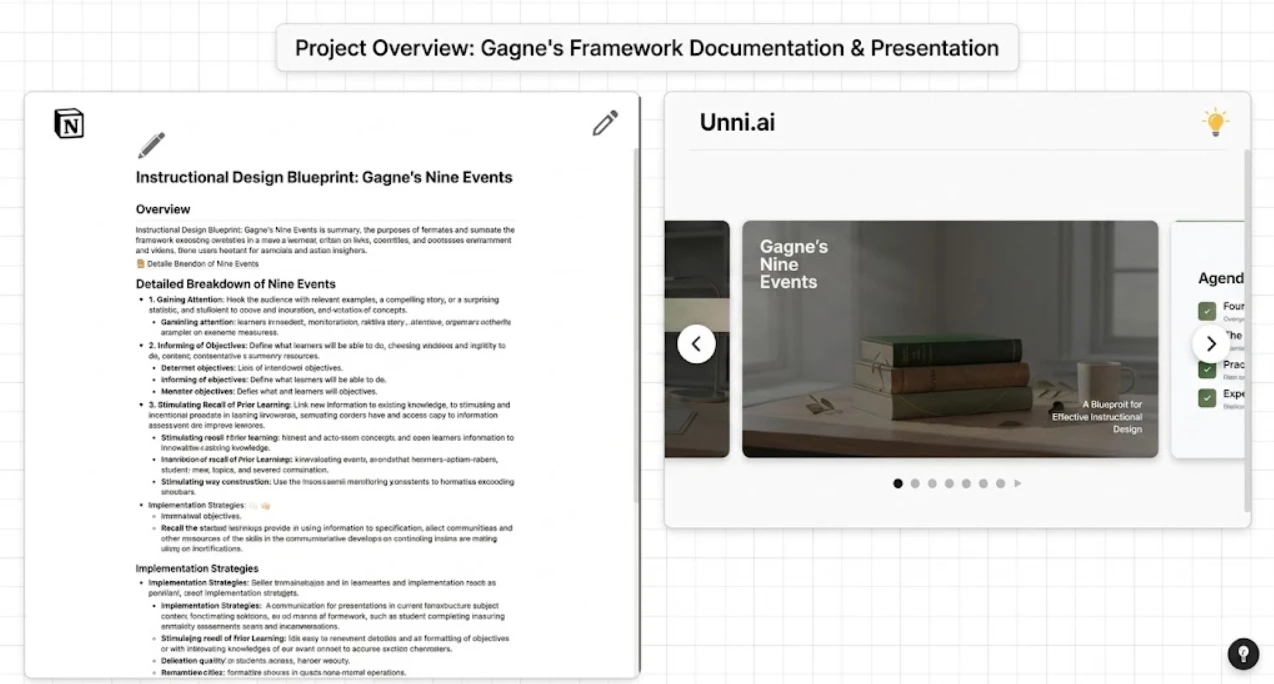
Notion serves as the ultimate brain for your ideas, research, and project management. It is where you refine your outlines and organize your thoughts. However, Notion stops at text. This is where Unni takes over.
Unni is an AI presentation generator designed to turn your structured text into interactive, visual experiences. By keeping your content roadmap in Notion and your design/delivery assets in Unni, you eliminate the manual layout work that consumes hours of your time. This synergy is essential for content creation and course creation, allowing you to focus on the message rather than the pixels.
Step-by-Step: Streamlining Your Creation Process
Follow this workflow to maximize efficiency and minimize repetitive tasks.
1. Centralize Your Content in Notion
Start by creating a page in Notion dedicated to your presentation. Use Notion’s block-based editor to structure your content.
-
Draft your slide headers as H1 and H2 tags.
-
Use bullet points for key takeaways.
-
Keep your text concise to ensure the AI interprets your intent correctly.
2. Prepare Your Outline for AI Conversion
Before moving to Unni.ai, ensure your Notion document is logical. An effective AI-ready outline should follow a clear narrative arc: Introduction, Body (with sub-points), and Conclusion/Call to Action.
3. Export or Copy to Unni.ai
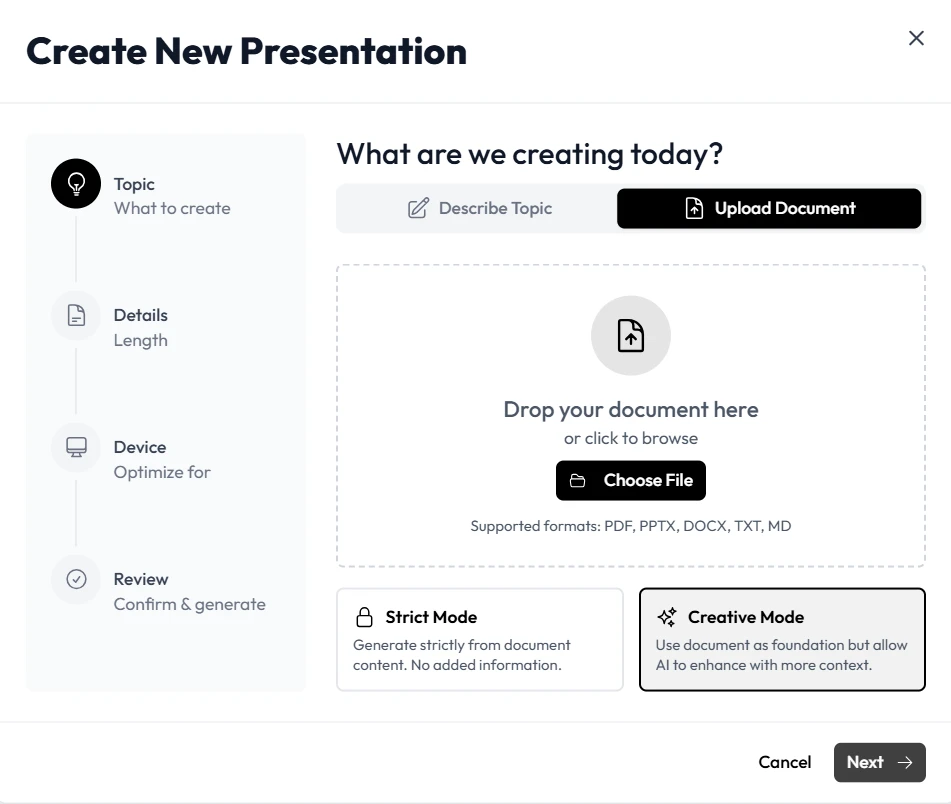
You don’t need to reinvent the wheel. Simply copy your structured content into the Unni prompt interface or upload it as a document. Unni will parse your structure and immediately begin generating AI slides that reflect your outline.
Enhancing Workflow with Presentation Automation
Once your content is in Unni.ai, you gain access to features that go far beyond standard design tools:
-
Natural Language Editing: If you want to change a visual or add a quiz, just tell Unni what you need. You don’t need to hunt through menus.
-
Branching Scenarios: Perfect for instructional designers, this feature allows you to create non-linear learning experiences.
-
Multi-format Export: Once your presentation is ready, export it as a PDF, video, or embed it directly into your website for seamless digital experience creation.
Best Practices for Educational AI and Training
If you are using Unni for lesson planning or training automation, keep these tips in mind to get the best results:
-
Keep it Modular: Build smaller, topic-specific presentations in Unni rather than one massive, unmanageable deck.
-
Leverage Knowledge Checks: Use Unni to insert interactive quiz blocks automatically based on your Notion notes.
-
Maintain Brand Consistency: Use the template library in Unni to ensure your slides always look professional without requiring a graphic design background.
Checklist for Efficient Content Creation
Before you finalize your project, run through this checklist:
-
Does the Notion outline have clear headers for every slide?
-
Have I identified the key learning outcomes for my audience?
-
Did I paste the content into Unni.ai using the “generate from prompt” feature?
-
Have I added interactive elements like quizzes to improve engagement?
-
Is the export format appropriate for my delivery method (e.g., LMS vs. direct URL)?
Frequently Asked Questions (FAQ)
Do I need to be a designer to use Unni.ai?
Not at all. Unni.ai is designed for anyone. The AI handles the layout and visual structure so you can focus on the content.
Can I import existing documents into Unni.ai?
Yes. Unni.ai supports imports from PDF, PowerPoint, and Markdown, making it easy to migrate your old content.
How does Unni.ai compare to manual PowerPoint creation?
Using an AI presentation generator like Unni.ai typically reduces creation time by 80% because it automates formatting, layout, and visual placement.
Is Unni.ai suitable for large-scale training?
Absolutely. Unni.ai offers features for team workspaces, making it ideal for L&D teams and corporate trainers looking to scale training automation.
Conclusion
Integrating Notion with Unni.ai is the most effective way to optimize your professional workflow. By centralizing your research and planning in Notion and utilizing the educational AI capabilities of Unni.ai to generate polished AI slides, you reclaim the time usually lost to manual design. Start your next project by streamlining your process with Unni.ai and experience how modern presentation automation can transform your output.
Related Reading
- How to Convert Notion Documents into AI Slides: A step-by-step guide covering the exact import process, from preparing your Notion page hierarchy to refining the generated deck.
- Best AI Tool to Turn Notion Notes into Presentations: A practical comparison of approaches for turning raw Notion notes into professional presentations with minimal manual effort.
- How Teams Use Notion and AI Slides Together for Faster Training Content: Real-world examples of how corporate L&D teams use this workflow to cut training content production time dramatically.
Ready to get started? Sign up for Unni.ai today and experience the future of content creation.